 Counterpunch
Glyph editor
The Editor view is where visual decisions happen point by point. The useful rhythm is inspect, adjust, compare. Start with small, reversible changes so you can see how a contour behaves before you take on interpolation or components.
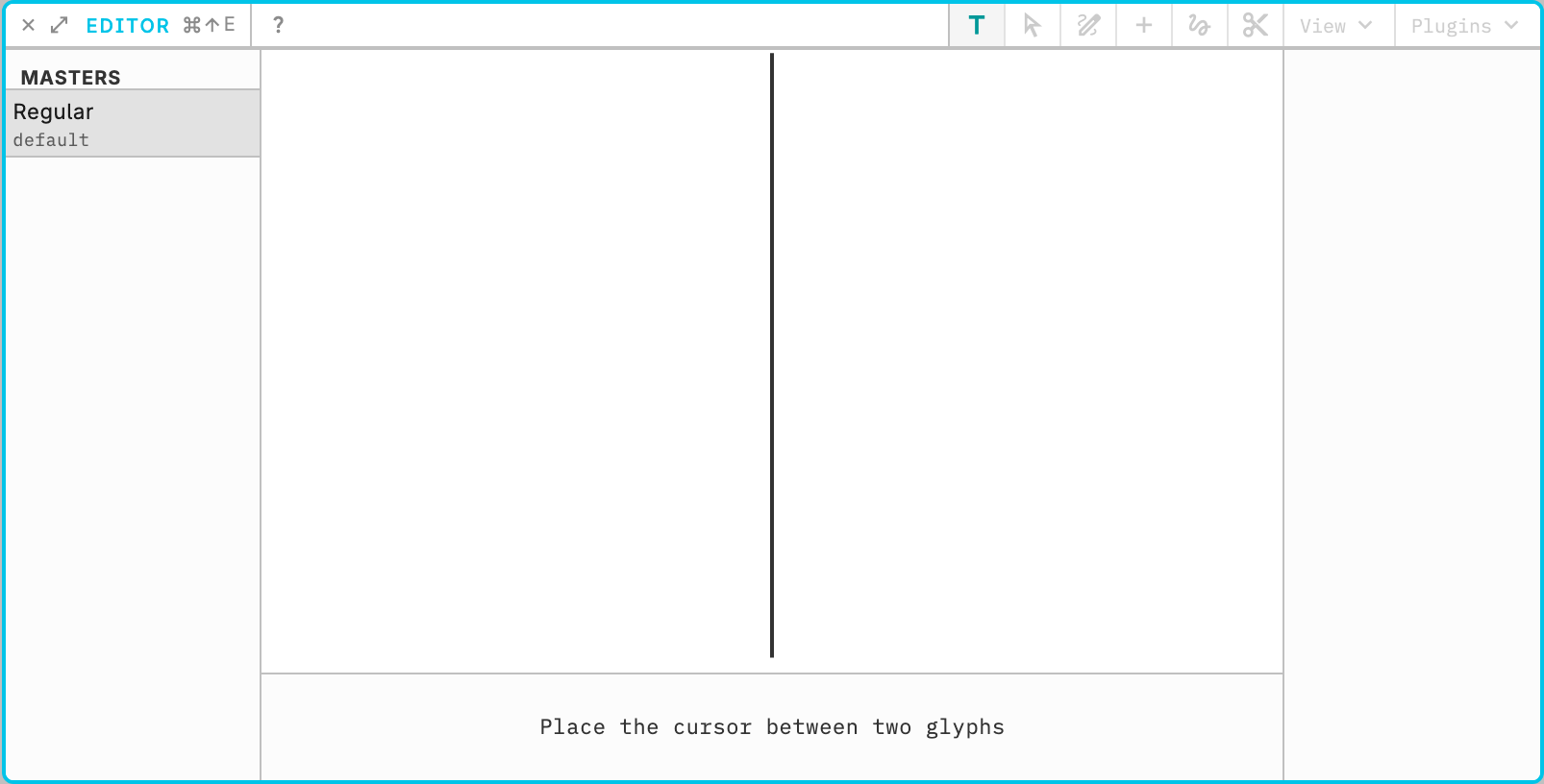
Open a simple glyph such as H or O. Click a point, move it a little, and watch the outline. Check sidebearings and overall balance. Undo if the change is too far.
Hold Tab to see sidebearings and other distances without leaving the canvas. In text mode Tab is this overlay, not a tab character. Cmd/Ctrl+0 is two-stage zoom-to-fit: in outline mode the first press frames the glyph with extra margin (max 250%), and a second press with unchanged pan/zoom shows a 25% line overview. In text mode the first press is that line overview and the second fits the whole run. Zoom out for the whole glyph, then in for a single curve. Save after a change you want to keep.
Outline tools are in Outline drawing. Component placement is in Automatic composition. Interpolation is in Axes and masters. Editor shortcuts are listed under Keyboard shortcuts.